Top Tips
- Click here to download some example project management reports.
- You can select different filter options and run the same report multiple times.
- You can set-up a report subscription and have your preferred report delivered straight into your inbox.
Click on the Reports tab in the navigation menu at the top of the screen, followed by ‘Verto - Standard Reports'.
Next, click on the ‘Project Management Reports’ folder to see a list of all available reports.

To run a report, simply click on the ‘View’ button in the right-hand column.
You can select from the following report filters (report dependent):
- Project(s) (based on your permissions) - select one or multiple projects
- RAG Statuses - select one or multiple RAG statues
- Open or Closed - select from open, closed, not set or multiple.
- Key - select from yes, no, not set.
- Categories - report specific.
- Start/End Date - select a date from the calendar.
Finally, click on ‘View Report’ in the top right to generate a new version.
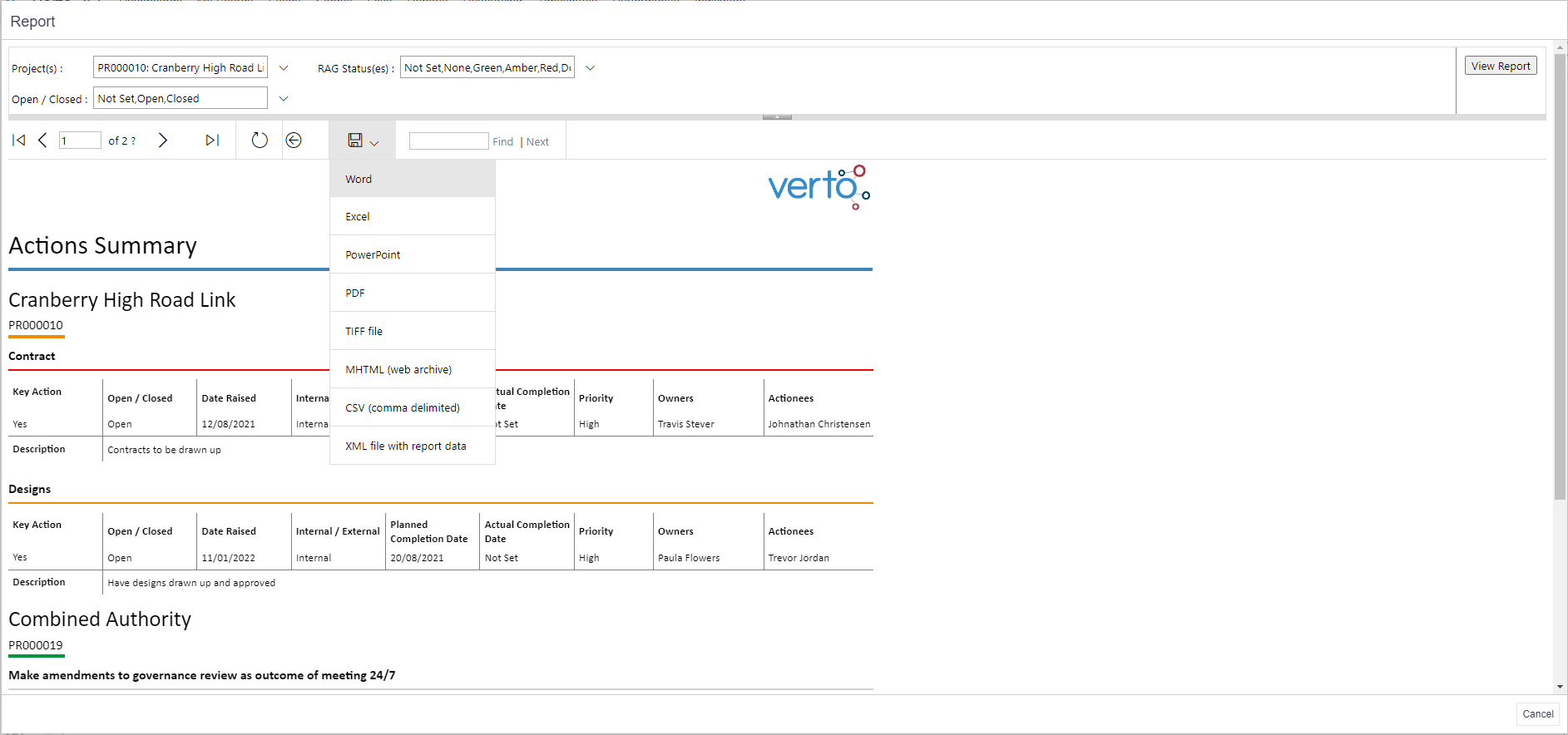
Your report can be downloaded in a number of different formats. Click on the ‘disk’ icon and select from the list. The report will automatically download.
Advice
- If you can't see any folders or reports, this will be because you haven't been given permission to access this area.
- Click on the house icon to navigate back to the report home area and access another folder.
- It is not currently possible to export or print via the Microsoft Teams App. Please use Verto through your web browser when these features are required.