HomeStandard Verto (Project)Getting StartedUseful Project FeaturesHow to add a project using "Save As"

    Useful Project Features

    • Verto Intelligence Data Insights
    • How to use Copilot with Verto
    • How to upload and manage files
    • How to create a risk from an issue
    • How to view the change history of a project
    • How to create connections using VertoSense
    • How to view and adjust the Dependencies Map
    • How to add and view project comments
    • How to add a project using "Save As"
    • How to archive and unarchive projects and data

    How to add a project using "Save As"

    Go to the project that you wish to duplicate (create a copy of). Click on Actions > Save As in the right-hand menu. 

    You will be asked to give the new project a name, and select the stage that this needs to be added to.
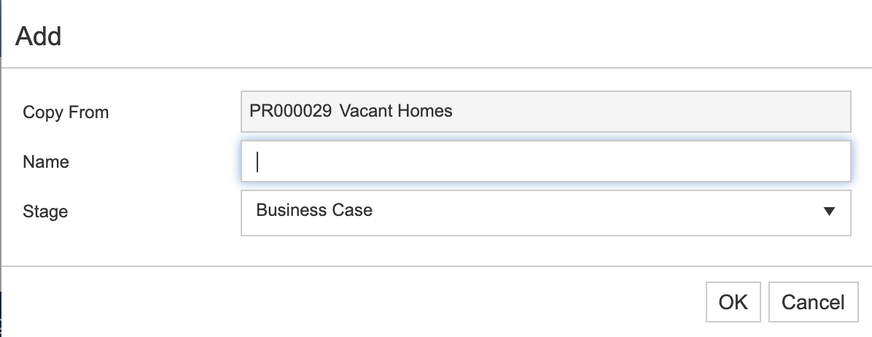
    When you are ready, click on OK. Your new project will be created and assigned a new project ID.

    Verto Intelligence Data Insights How to use Copilot with Verto How to upload and manage files How to create a risk from an issue How to view the change history of a project How to create connections using VertoSense How to view and adjust the Dependencies Map How to add and view project comments How to add a project using "Save As" How to archive and unarchive projects and data

    Knowledge Base Software powered by Helpjuice

    Definition by Author

    0
    0