Top Tip
- The layout of the budget or savings table can be changed to an Edit All view by clicking on the downward arrow next to the Add button and selecting Layout. Click on the following highlighted link for more information on tailoring your project table layout.
What are Financials?
Financials can be defined as the budget available for a project or activity and the monetary savings associated with it's successful delivery.
Budget & Savings Status
By using the dropdown field, you can select the most appropriate RAG status for the overall budget and savings, and provide any associated commentary. This information can be updated in real-time.
Adding Budget
This is where you can list the individual costs for delivering your project or activity. For example, training, staff, renting of buildings, stationary etc. The budget breakdown can be added to the project table via Add.

Budget information can be entered using the simple form containing dropdowns, text, numeric, date and user picker fields.

Anyone added as an Owner will receive a Verto notification and can set-up their own reminders for completion. They will also see these records in their personal Feed.
Advice
- Owners must be added to the Team Members table; otherwise they will not have permission to access the project or activity.
Adding Savings
This is where you can list the individual financial savings for delivering your project or activity. For example, reduction in staff, reduction in property footprint, reduction in stationary spend etc. The financial savings breakdown can be added to the project table via Add.

Savings information can be entered using the simple form containing dropdowns, text, numeric, date and user picker fields.
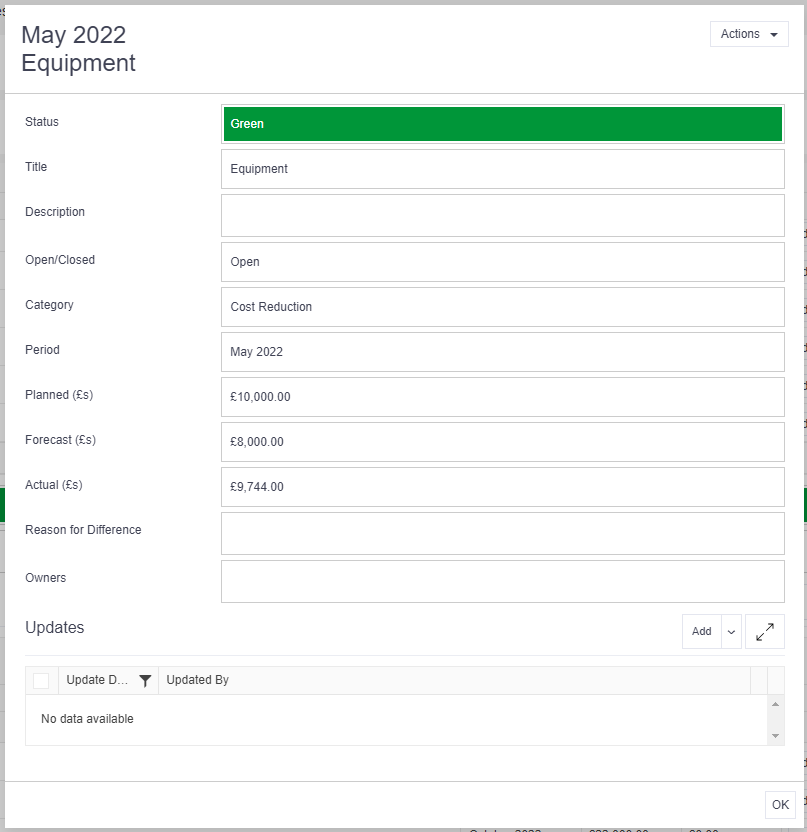
Anyone added as an Owner will receive a Verto notification and can set-up their own reminders for completion.
Updating Budget or Savings
Click on Edit against the individual budget or savings line to amend the information in the form.
The Updates area at the bottom of the form can also be used to record regular progress updates. Click Add to record a new update.